My Ibiza has an aftermarket head unit with wireless CarPlay and Android Auto. It’s been running firmware H-M-7033-86-250312 (from March 2025). A new version, H-M-7033-251203, is out, so I updated it. I also rebuilt the image with a custom boot logo (SEAT | FR) and 210 corrected German menu strings, since the factory translations are… creative (“McJumbo hier.” really does appear where “Lautsprecher” should be).
This is a write-up of what I did, what I checked, what I didn’t check, and how to get back to the original if something goes wrong. I’ve been running the updated image on the radio for four days now — more on that below.
TL;DR
- The update package
H-M-7033-251203passes the compatibility checks: sameH-M-7033prefix, newer date than what’s installed, and the archive contents match my unit (UIN01, 8-inchHSD080IFW1display). - I rebuilt the image with a custom SEAT|FR boot logo and fixed 210 German menu strings (e.g. “Ton wie die navigation.” → “Lautstärke Navigation”). All three checksum levels in the package were re-calculated, and I verified the diff with
cmp,dd+md5, andcrc32. - Running it for four days now. The new config menu let me change the WiFi channel, and since then I haven’t had a single connection issue or hiccup with wireless CarPlay.
- The update resets the user partition (your settings and the logo), so back up your settings and keep a rescue stick with the original image handy. There is no official way back to 250312 — the manufacturer no longer offers that image.
Is it compatible?
Following radio4car’s compatibility rule:
- The prefix
H-M-7033is identical. 251203(December 2025) is newer than250312(March 2025), so it’s an update, not a downgrade.- The archive folder is
西亚特7033(“SEAT 7033”). Inside the BIN it saysH-M-7033-251203, the app ID isUIN01which matches myCAP0UIN01, and the display is anHSD080IFW1— 8-inch, 1024×600, LVDS.
One open question: the new package is missing the -86- segment that the old one had. The download page was originally the “-86-” page and was updated in place with this package, so it’s very likely the direct successor. The updater itself doesn’t check the variant. If you want absolute certainty, email hqdservice@gmail.com before flashing.
Changelog per the manufacturer: fixes after phone system updates (iOS 26), improved wireless CarPlay and Android Auto, separate volume controls for music, navigation and main volume, and the option to disable automatic phone connection on startup.
What I changed in the image
Other than the firmware version itself, I only changed two things:
The boot logo
The SEAT badge (1999–2012) with a chrome separator and the FR logo on black. It’s a 44,137-byte JPEG with the same structure as the original logo, stored as 0.bin in the JFFS2 user partition.
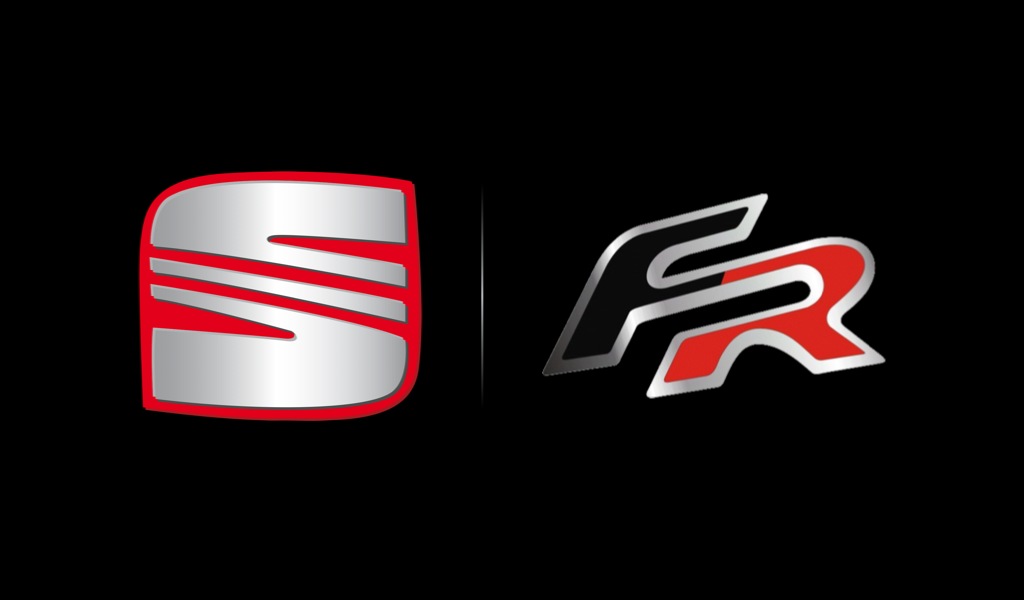
The SEAT name, the SEAT logo and the FR badge are trademarks of SEAT, S.A. I made this logo variant for my own car and show it here only to document the mod. I’m not offering it for download, I’m not selling anything with it, and I don’t claim any rights to the SEAT or FR marks. If you want to use these logos yourself, check with SEAT, S.A. or a lawyer first. Trademark law differs by country and use case, and this isn’t legal advice.
You can also change the logo on its own, without a full firmware update (see Step 3). The F2 image is the same file that goes on the stick as logo.bin.
The 210 German strings
I replaced the machine-translated menu texts with proper German. A few examples:
| Factory German | Corrected German |
|---|---|
| McJumbo hier. | Lautsprecher |
| Schalten Sie Ihr Telefon automatisch an | Beim Einschalten automatisch verbinden |
| Aspektsverhältnis | Seitenverhältnis |
| Briefkasten | Letterbox |
| Doppel Läufer | Dual Mono |
In total I replaced 210 entries. Ten were intentionally left unchanged because they’re shared with other languages, the space is too tight, or a pointer lands inside the text (e.g. No. 119, 286, 435, 523, 664, 771, 903, 915, 1043, 1091).
The strings live as C-strings in the program area, addressed through a pointer table (32 languages × 1212 entries; German is table 24). I replaced them in place — no new text is longer than the space available, and the pointers stay untouched. Only strings that the German table points to exclusively were touched; anything shared with other languages or with a pointer in the middle was left alone.
Checksums: The package has three levels (MD5 per 2-MiB block in the update script, CRCs of the uImage script, and an MD5 over the whole flash image in the partition table). I re-calculated all three for the modified blocks (text area 0x18000 and logo block 0xC18000).
What I verified (and what I didn’t)
Before building, my tool re-computed all original checksums. After building, it read the result back in full: all pointer tables, all 31 other languages, and all uncorrected German strings are unchanged; the JFFS2 CRCs match; the logo is byte-identical.
Independent spot checks:
cmp: changes only in the text area (flash0x7E2EC–0x81617), the logo block, 68 bytes of script, and the package MD5.dd+md5: all 8 blocks and the package MD5.crc32: the script CRCs.- A separate reader finds all 210 texts correctly.
What I have not done: long-term logging of every CarPlay session — but I have been driving with it daily for four days, including the WiFi channel change in the new config menu, and so far there’s not a single connection issue or hiccup to report.
Why nothing should break permanently
- The first-stage bootloader
xbootlives outside the update area and is never touched. - If an update is interrupted, the radio boots back into update mode and loads the updater straight from the stick.
- Bootloader, eCos system and program code are unchanged — only display strings and one file the radio writes itself.
- I looked for a runtime checksum over the program area (CRC32, 32-bit sums, byte sums, MD5 over the relevant regions) and found none, so there’s no runtime check that could reject the modified strings.
- You can always go back to the original image with the rescue stick.
Step 1 — Prepare the USB stick (on the Mac)
Grab a 4–32 GB stick. Everything on it will be erased.
bash ~/carplay-H-7033/prepare-usb-stick.sh --modified
The script is prepare-usb-stick.sh in the ~/carplay-H-7033/ directory. It runs on macOS and uses diskutil to do everything. Enter the identifier (e.g. disk4) and confirm it twice. What happens:
- It lists external drives and checks that the stick is a whole, external, physical disk (not internal, not virtual).
- It checks the size is in the 4–32 GB range the manufacturer recommends (you can override that and continue anyway). I used a Samsung 64 GB stick and it worked fine — the size check is a warning, not a hard block.
- Everything on the stick is erased. You confirm by typing the disk identifier again.
- The stick is formatted FAT32 / MBR with the volume label
HQDUPDATE. ISP_DSPM.BINis copied to the root of the stick.- macOS helper files (
.Spotlight-V100,.fseventsd,.Trashes,._*) are removed so only the one file is on the stick. - The stick is remounted and the file is verified by SHA-256 against the stored checksum.
- The stick is ejected.
The verification matters: the radio erases its flash before checking the file. A corrupt file on the stick means a wiped radio stuck in an update loop.
The same script has three modes:
| Call | What it does |
|---|---|
bash prepare-usb-stick.sh --modified | Prepare the stick with the modified firmware (logo F2 + corrected German texts) |
bash prepare-usb-stick.sh | Prepare the stick with the unmodified original (rescue stick) |
bash prepare-usb-stick.sh --logo | Prepare the stick with just logo.bin for a logo-only update |
To check a finished stick:
bash ~/carplay-H-7033/prepare-usb-stick.sh --modified --verify /Volumes/HQDUPDATE
Rescue stick (recommended): prepare a second stick with the untouched original and leave it in the car:
bash ~/carplay-H-7033/prepare-usb-stick.sh
Step 2 — Flash (in the car)
- Keep the engine running so voltage stays stable during the update — ignition on is not enough.
- Let the radio boot normally.
- Plug the stick into the rear USB port on the radio (or the directly connected cable), not a CarPlay hub. The updater sometimes doesn’t start over the front port.
- Open the USB menu. You should be prompted to start the firmware update or abort. In my case it started on its own about 10 seconds after I opened the menu.
- The radio reboots and shows “Partial Update Mode … to 2025/12/03 15:30” with progress (Erasing → Programming → Verifying).
- Wait 3–5 minutes. Do not turn anything off, do not pull the stick.
- The radio reboots by itself. Then pull the stick.
- Cycle the ignition (off and back on) to reset the radio.
- At startup you should see the F2 logo (SEAT | FR). If German is set, the corrected strings show up — e.g. “Lautstärke Navigation” in the volume settings.
- Under Settings → About, confirm User Ver now reads
H-M-7033-251203.
If nothing happens for minutes after plugging in, the stick isn’t being recognized. Turn the ignition off, try another port or another stick (4–32 GB), and try again.
If the update says “Fail / Please check your hardware status”, verify the stick on the Mac with --verify, recreate it if needed, and repeat. Until it succeeds, the radio keeps rebooting into update mode.
Afterwards
- Expect factory defaults. The update rewrites the user partition with stock content — that’s where your logo,
usercfg.bin,key.bin,ir.binandtp.binlive. Write down your settings first (steering wheel buttons, sound, etc.). The end of the flash area gets erased. If CarPlay doesn’t work afterward, remove the car from your iPhone’s CarPlay and Bluetooth lists and pair again. - If something’s wrong: Home → Settings → Default (factory reset).
- If you see the stock firmware logo instead of F2, flash the logo the official way (see Step 3).
- If the update is interrupted by a power loss, the bootloader stays intact. Next time you turn on with the stick, the update starts over.
- Rollback to the original: insert the rescue stick. It flashes the unmodified original image with the stock logo and original strings.
- No way back to 250312: the manufacturer doesn’t offer that image anymore. If you want to hedge, ask hqdservice@gmail.com for it before you update.
Step 3 — Changing the logo or texts later
Logo only, no firmware update: the file must be a 1024×600 JPG under 52 KB, named exactly logo.bin. Put it on the stick, plug it into the rear USB port while the radio is running, and the radio picks it up automatically. Reboot after.
To rebuild the whole image (e.g. with another logo variant, or with your own edited menu strings):
cd ~/carplay-H-7033 && cp logo-variants/F1.jpg usb-stick-logo/logo.bin && (cd usb-stick-logo && shasum -a 256 logo.bin > ../logo.bin.sha256)
cd ~/carplay-H-7033 && python3 -I build-image.py usb-stick/ISP_DSPM.BIN usb-stick-modified/ISP_DSPM.BIN --logo usb-stick-logo/logo.bin --texte text_corrections_de.tsv && (cd usb-stick-modified && shasum -a 256 ISP_DSPM.BIN > ../ISP_DSPM.BIN.modified.sha256)
The builder only accepts the unmodified original file (it checks its SHA-256), re-verifies all original checksums before building, checks every string before replacing it (space, exclusivity, no pointers inside), and only writes the result if the full check passes.
Links
- Firmware package: radio4car.com — H-M-7033 firmware (the page still says 250218 but now serves 251203).
- Manufacturer support: hqdservice@gmail.com